Intro
Get started with Forge.
Forge is an open source AI coding agent with a review-first workflow and approval prompts for edits and shell commands by default. It is a desktop app for macOS, Windows and Linux, and a personal project rather than a supported product.
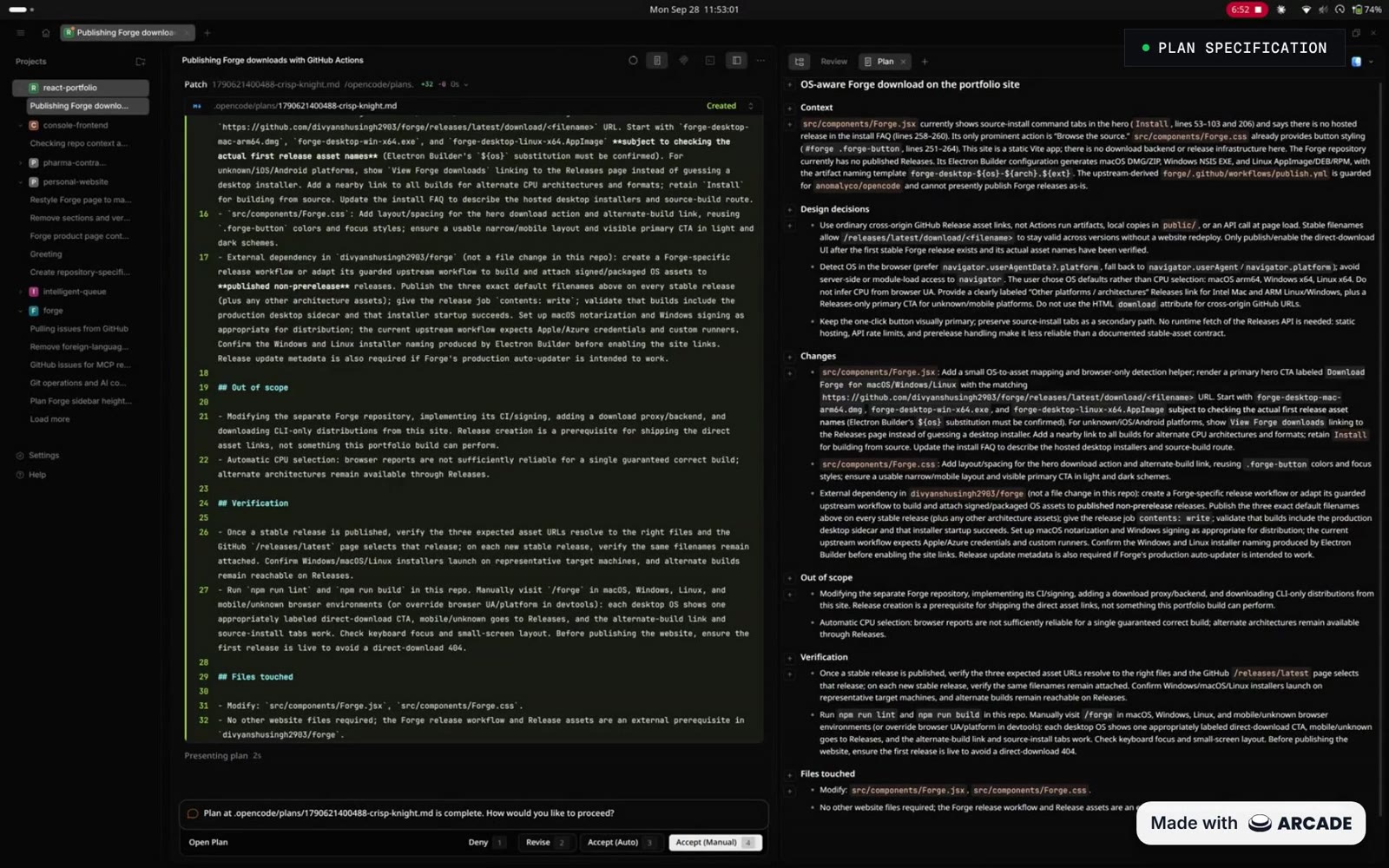
Plan review in an earlier Forge interface; current controls may differ.
What’s new
These docs cover OpenCode 2.2.5 · Forge 0.7.4. The tag v2.2.5-v0.7.4 combines the upstream engine version and Forge’s own version. Downloads follow the latest published release.
The V2 foundation brings richer context inspection, persistent session terminals, worktree shortcuts, guided Claude Agent setup and percentage-based compaction buffers. Forge keeps its edit modes, plan review and local memory alongside the built-in browser and desktop Git workflow. These are capabilities available here, not a claim that each was introduced in 2.2.5 or is exclusive to Forge.
- Browser: shared Chromium tabs, element comments, screenshots and debugging.
- Context and compaction: inspect what fills the window and reserve headroom.
- Terminals and worktrees: persistent terminals and faster workspace navigation.
- MCP connections: optional integrations; Forge 0.7.4 adds recovery for stale sign-ins from the session popover.
See Forge Releases for Forge changes and the OpenCode V2 changelog for inherited engine and desktop changes.
Getting started
1. Download
Grab an installer from GitHub Releases. The download button on the Forge page picks the right one for your OS.
| OS | Default build | Notes |
|---|---|---|
| macOS | .dmg, Apple Silicon (arm64) | A .zip is also published. |
| Windows | .exe installer, x64 | Installs per user, one click. |
| Linux | .AppImage, x86_64 | .deb and .rpm packages are also built. |
This release also publishes macOS x64, Windows arm64 and Linux arm64 builds on Releases. The download button selects an OS default, not your CPU architecture; choose an alternate build there when needed. Minimum OS versions aren’t documented yet.
Which Linux package?
- AppImage Works on most distributions. Make it executable and run it, no install needed.
- .deb For Debian, Ubuntu and derivatives. Install with your package manager.
- .rpm For Fedora, RHEL, openSUSE and derivatives.
2. First launch
The installers aren’t code-signed yet, so your OS may block the first launch.
- macOS Open System Settings → Privacy & Security and click
Open Anyway, or runxattr -dr com.apple.quarantine /Applications/Forge.app. - Windows When SmartScreen appears, click
More info→Run anyway. - Linux Make the AppImage executable, then run it.
3. Connect a provider
Forge needs a model provider before it can do anything. It supports the same providers as OpenCode.
- Open Settings and go to
Providers, or run theConnect providercommand. - Pick a provider from the list, or add a custom one.
- Choose a login method if the provider offers several:
API key,BrowserorHeadless. - Paste your API key, or follow the link and enter the authorization code you receive.
- Pick one of the provider’s models from the model picker next to the prompt.
Provider and model options are the same as OpenCode’s, so its providers and models pages apply. Ignore any steps that mention the terminal UI.
For Claude Agent, the provider picker guides you through installing Claude Code, signing in with claude auth login, and checking the connection. You supply your own account and authorization; Forge does not include credentials.
Updating
Forge can check for updates from its app menu. Because the installers aren’t signed, macOS opens the release page instead of installing in place: download the new .dmg and replace the app. You can always get the latest version from Releases, and the full history is on the same page.
Your first session
This walks through the loop Forge is built around: ask, review, approve.
- Open a project folder. Unless settings override it, Forge starts in
Manualmode with thebuildagent. Edits and shell commands ask by default; configured permission rules still apply. - Ask for something small, such as “add a unit test for the date helper”.
- Watch the agent explain its next step. Running tool calls show a live timer.
- When it wants to edit a file or run a command, a permission prompt appears. Press
1,2or3to answer, or click. - For bigger work, switch to
Planmode first. Review the plan in the side panel, then accept, revise or deny it. - Review the resulting changes in the review panel, then stage and commit from there.
Agents
Forge has two built-in primary agents. Use the mode picker beside the composer, or Cmd/Ctrl+. to cycle forward and Cmd/Ctrl+Shift+. to cycle back. The picker includes Manual, Accept edits, Auto, Plan and custom primary agents.
- build The default agent for development work. Manual asks before edits and shell commands unless configured rules allow them. It offers plan mode when work needs design first.
- plan Researches and designs without editing your application files. Edits are restricted to plan files; shell commands follow permission rules.
Two subagents handle delegated work. Invoke them with @ in a message, or let the primary agents call them.
- general Researches complex questions and runs multistep tasks, including several units of work in parallel.
- explore A fast, read-only agent for finding files and answering questions about the codebase.
You can define your own agents and tune these ones. See OpenCode’s agents page, keeping in mind that Forge’s built-in build and plan defaults are stricter than upstream’s.
Edit modes
The mode picker next to the prompt sets how much the agent can do without asking.
| Mode | Behavior |
|---|---|
Manual | The default. Edits and shell commands ask unless configured permission rules say otherwise. |
Accept edits | Edit requests that would ask are approved automatically. Shell commands and other requests follow their permission rules. |
Auto | Requests that would ask are approved automatically; deny rules remain denied. Toggle with Cmd/Ctrl+Shift+A. |
Plan | Switches to the plan agent. Picking any other mode switches back to build. |
The picker controls the current session or new-session draft, not the project default. Set Start new sessions in Auto mode in Settings → Preferences, with an override in project settings. Anything your config sets to deny stays denied in every mode.
Permissions
Out of the box, agents ask before:
- editing files and running shell commands, unless configured rules override the default
- reading
.envand.env.*files (.env.exampleis allowed)
Reading outside the workspace does not universally ask. Add explicit external-directory rules if you need that boundary. V2 uses a permissions array. This example intentionally allows sensitive environment-file reads without asking; only use it if that is what you want:
{
  "permissions": [
    { "action": "read", "resource": "*.env", "effect": "allow" },
    { "action": "read", "resource": "*.env.*", "effect": "allow" }
  ]
}
Each rule names an action, a resource pattern and an effect: allow, ask or deny. Legacy singular permission configuration is migrated. Forge reads opencode.json or opencode.jsonc in the project or global config folder. See OpenCode’s permissions and config references, checking examples against the V2 baseline.
Plan review
The plan agent writes its plan to a Markdown file and shows it in a side panel. When the plan is ready, you choose what happens next:
- Accept (Manual) Return to Build with normal approval prompts.
- Accept (Auto) Return to Build with file edits accepted automatically, not full Auto. Shell commands and other requests follow permission rules.
- Revise Send the plan back with feedback.
- Deny Stop without changing any code.
The Plan tab opens when the agent presents its plan. Use Review plan to reopen it, or quote passages with comments to request targeted revisions. If a request needs design first, Build offers to switch into Plan.
Plan files
Plans persist as .opencode/plans/<timestamp>-<generated-slug>.md inside the session’s working directory, including outside Git. Each planning cycle gets a new file. Plan is restricted to plan files. You can edit them like any Markdown; Forge filters them out of Review’s Git changes. Add .opencode/plans/ to .gitignore if you don’t want to commit them.
Browser
Forge’s built-in Chromium browser shares the same tabs between you and the agent. Run Open browser, or choose Browser in the side-panel launcher. The default shortcut is Ctrl+Cmd+B on macOS or Ctrl+Alt+B on Windows/Linux.
- Start your app’s development server and open its URL in the browser pane.
- Ask: “Open my local app, check the sign-in form, and report browser errors.” The agent can inspect pages, interact with forms and capture screenshots.
- Use the element picker with
Cmd/Ctrl+Shift+Cto select an element and attach an optional comment to the composer.
Inside the pane, Cmd/Ctrl+L focuses the address, Cmd/Ctrl+T opens a tab and F5 reloads. Tools also cover console logs, network requests, performance traces, CPU profiles and memory snapshots. Lighthouse checks accessibility, SEO and best practices—not device emulation or a performance benchmark.
Permissions and boundaries
- A compatible Forge desktop browser must be attached to the session. Browser tools are not a standalone headless service.
- Inspection is allowed after attachment. Navigation, clicks, typing, evaluation and other actions ask unless permissions or the selected mode allow them.
- Pages use the connected server’s network:
localhostmeans the server machine, not necessarily your laptop. - Agent navigation accepts HTTP, HTTPS and
about:blank, not credential-bearing URLs or arbitraryfile://paths. Ask it to preview local files instead. - Chromium is sandboxed, with Node integration disabled and context isolation/web security enabled. Camera, microphone, geolocation, notifications and device/screen-capture permission requests are blocked.
- Screenshots require a focused tab and visible desktop window. Uploads and file drops are limited to 5 MiB total per operation.
Context and compaction
Click context usage in the session header to open Context. Inspect estimated contributions from messages, system instructions, tools, MCP, skills, references and memory, alongside cost and compaction headroom. Estimates explain usage; they are not exact provider billing totals.
The panel also exposes system-prompt/raw-message views and session export. Run /compact to summarize the conversation manually. To reserve a share of each model’s context window, configure:
{
  "compaction": { "buffer": "20%" }
}
Numeric token-count buffers still work. When commenting on quoted content, Cmd/Ctrl+Enter sends just the quote and comment, leaving your existing composer draft untouched.
Terminals and worktrees
Desktop terminals belong to the session. Their names and scrollback survive server restarts and stay synchronized across windows, so you can return to the same workspace.
Use Cmd/Ctrl+Alt+O to choose a worktree. Select Choose base branch in the command palette when creating one. Toggle composer shell mode with Cmd/Ctrl+Shift+X. Shell mode runs commands rather than sending them as model prompts.
MCP connections
Manage integrations in Settings → MCPs, separately from model providers. Optional built-in connections for GitHub, GitLab, Linear, Notion, Sentry and Jira start disabled. Enable the ones you need and complete their setup; authentication differs by server. GitHub supports token or pre-registered OAuth setup.
- Open MCPs, enable a connection and supply the required configuration or sign-in.
- Check its status in the session MCP popover.
- If a connection fails or needs sign-in, use the gear beside that server to reconnect or reconfigure it. The failed-server dialog offers
Retry.
Forge 0.7.4 adds this session-popover recovery path for stale sign-ins. Custom servers remain supported through OpenCode V2’s MCP configuration.
Git
The review panel includes Git controls, so you can stay in the app:
- See live branch/status and review uncommitted, branch or session changes.
- Stage files or folders and commit with a message generated by your active model.
- Fetch, pull with merge or rebase, push and set upstream on a new branch.
- Manage stashes. Destructive discard and stash-drop actions ask for confirmation.
Memory
Forge can keep local notes about a project across sessions. It stores a short MEMORY.md index plus optional topic notes, loads the index into new sessions, and proposes updates when it learns something worth keeping. Memory is on by default.
Memory vs AGENTS.md
AGENTS.md is shared with your team and committed to the repo. Memory is personal and local, so it can’t be committed by accident. Use memory for your preferences, corrections, and decisions that aren’t obvious from the code. Facts your whole team needs belong in AGENTS.md.
Where it lives
Each project gets a folder in the data directory, named after the project path plus a short hash. On Linux that is ~/.local/share/opencode/memory/<slug>-<hash>/. Inside are MEMORY.md and topic notes, all plain Markdown you can edit or delete.
Which folders share memory
- Subdirectories of a repo share that repo’s memory.
- Linked worktrees share memory with the main checkout.
- Independent clones of the same repo each get their own memory.
- Outside Git, memory is keyed by the folder you opened.
How it works
Memory guidance asks the agent to save only things you said or confirmed, avoiding secrets and temporary task state. Writes follow ordinary edit permissions: Manual normally asks; Accept edits and Auto can approve automatically. The index is loaded at session start and after compaction, up to 100 lines or 12,800 bytes.
Build can maintain memory notes. Plan remains restricted to plan files, not memory. Subagents receive read-only memory guidance and cannot edit the notes.
To turn memory off, set memory to false in your config. Existing notes are kept.
Forge vs OpenCode
Forge shares OpenCode’s engine, so most of its docs still apply. Where they do, the notes below say what to watch for.
| Area | In Forge |
|---|---|
| Providers and models | Same as OpenCode: providers, models. |
| Config | OpenCode V2 config files and schema; check older examples against this baseline. Memory is on by default. |
| Permissions | V2 action/resource/effect rules. Forge asks for shell/edit by default; mode overrides do not bypass denies. |
| Agents | agents applies for custom agents. The built-in build and plan agents behave differently. |
| MCP servers | OpenCode V2 custom servers plus optional built-in connections and setup/recovery UI. |
| Skills, rules, plugins | Same as OpenCode: skills, rules, plugins. |
| Workflow | Forge modes, plan review and local memory are documented here, alongside browser, Git and inherited desktop capabilities. |
| Install and interface | These docs cover Forge’s desktop installers. Upstream terminal UI and install-script instructions are not desktop setup instructions. |
Troubleshooting
The app won’t open
On macOS and Windows this is usually the unsigned-installer warning. See first launch. On Linux, check that the AppImage is executable.
Forge opens but can’t answer
Check that a provider is connected in Settings → Providers and that a model is selected. If the server fails to start, quit Forge fully and reopen it.
The browser is disconnected or can’t reach localhost
Open the session in the Forge desktop app and attach its browser pane. With a remote server, start the app on that server or use an address reachable from it; localhost is not automatically your laptop. See Browser.
An MCP connection needs sign-in
Open the session MCP popover, select the gear beside the affected server, and reconnect or reconfigure it, then retry. See MCP connections.
Where the logs are
Forge writes logs to a logs folder inside its user data directory, with a new timestamped folder for each run (main.log, renderer.log). Logs older than seven days are cleaned up automatically. Attach recent ones when you report a bug.
Reporting a bug
Open an issue using the bug report template, or browse the issue tracker. Keep it short and specific.
Limitations
- Forge is a personal project, not a supported product.
- The installers are unsigned, so expect a first-launch warning.
- These instructions target the desktop app, not upstream’s terminal installation.
- Browser tools require an attached desktop browser. Network access and localhost are relative to the connected server.
- Artifacts and schedules remain opt-in through
experimental.artifactsandexperimental.schedules; they are not enabled by default. - Memory has no management UI or
/memorycommand, is per project, and doesn’t sync across machines. - Releases are published manually, so the releases page is the changelog.
Contributing
Forge is a personal project, but contributions are welcome. Start with an issue before opening a pull request. CONTRIBUTING.md covers setup per platform, running the desktop app from source, and what pull requests should include. CONTEXT.md describes the session runtime’s vocabulary if you’re working on the core.
Questions or bugs go to the issue tracker.